

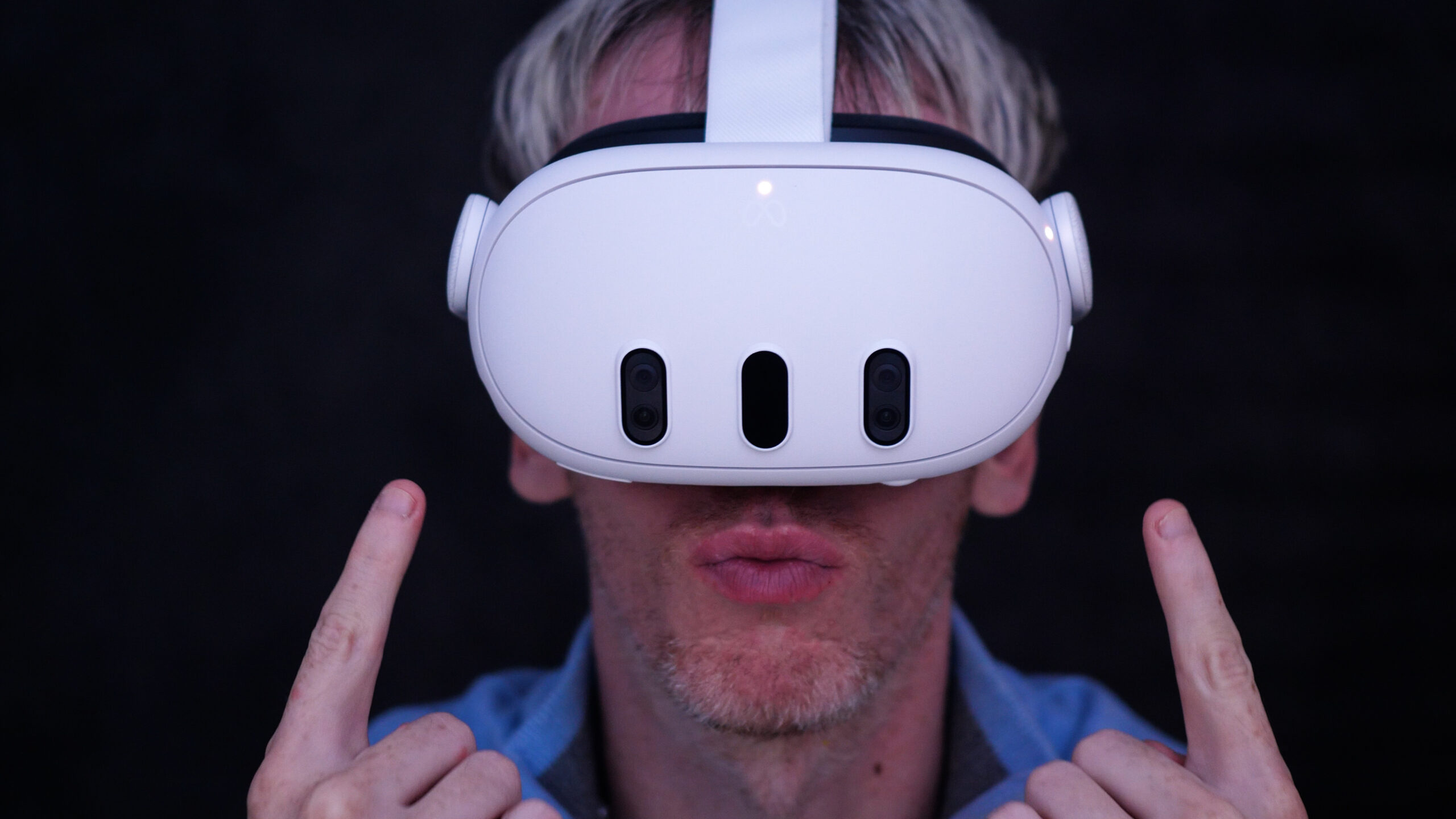
Here are 21 Tips and Tricks for using your Meta Quest 3 so you can get the most out of your headset. Let’s get straight into it.
Video Version
If you prefer to watch the video version of this post then you can do so here:
Put your Headset On Right
The Quest 3 with the strap it comes with is not particularly comfortable. It’s pretty flimsy and overall not the best experience. I think most people will eventually end up getting one of the premium straps and it’s just not feasible to use this for long periods of time.
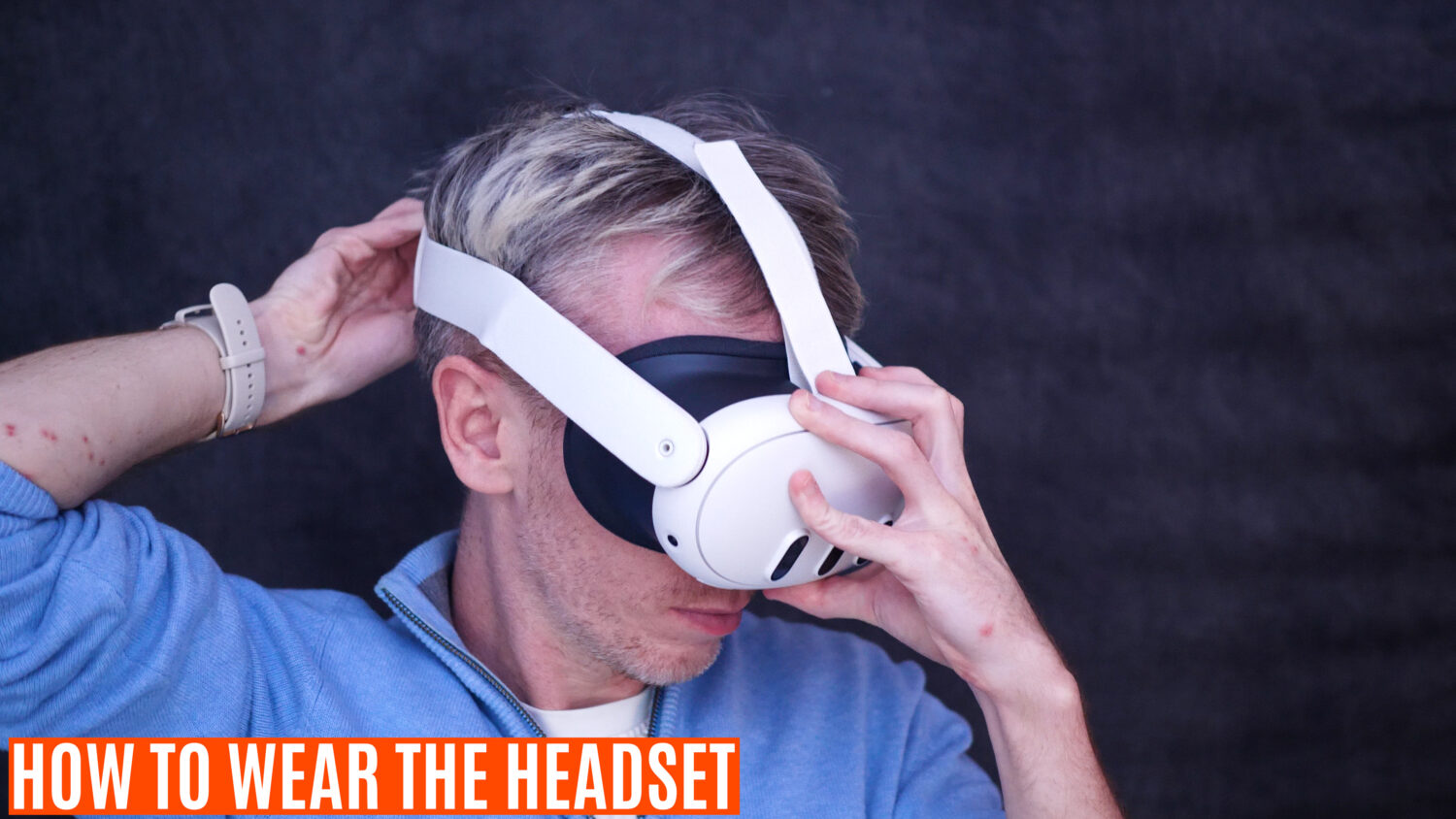
Having said that there are ways to maximum comfort even with the default head strap.
The best way I’ve found to put on the Quest 3 is to position the front of the headset on your face with one hand, positioning it correctly in front of your eye’s so the screen isn’t blurred. Now extend the head strap over your head and make adjustments until the headset sits securely and when you let go it doesn’t move.
Adjust Facia
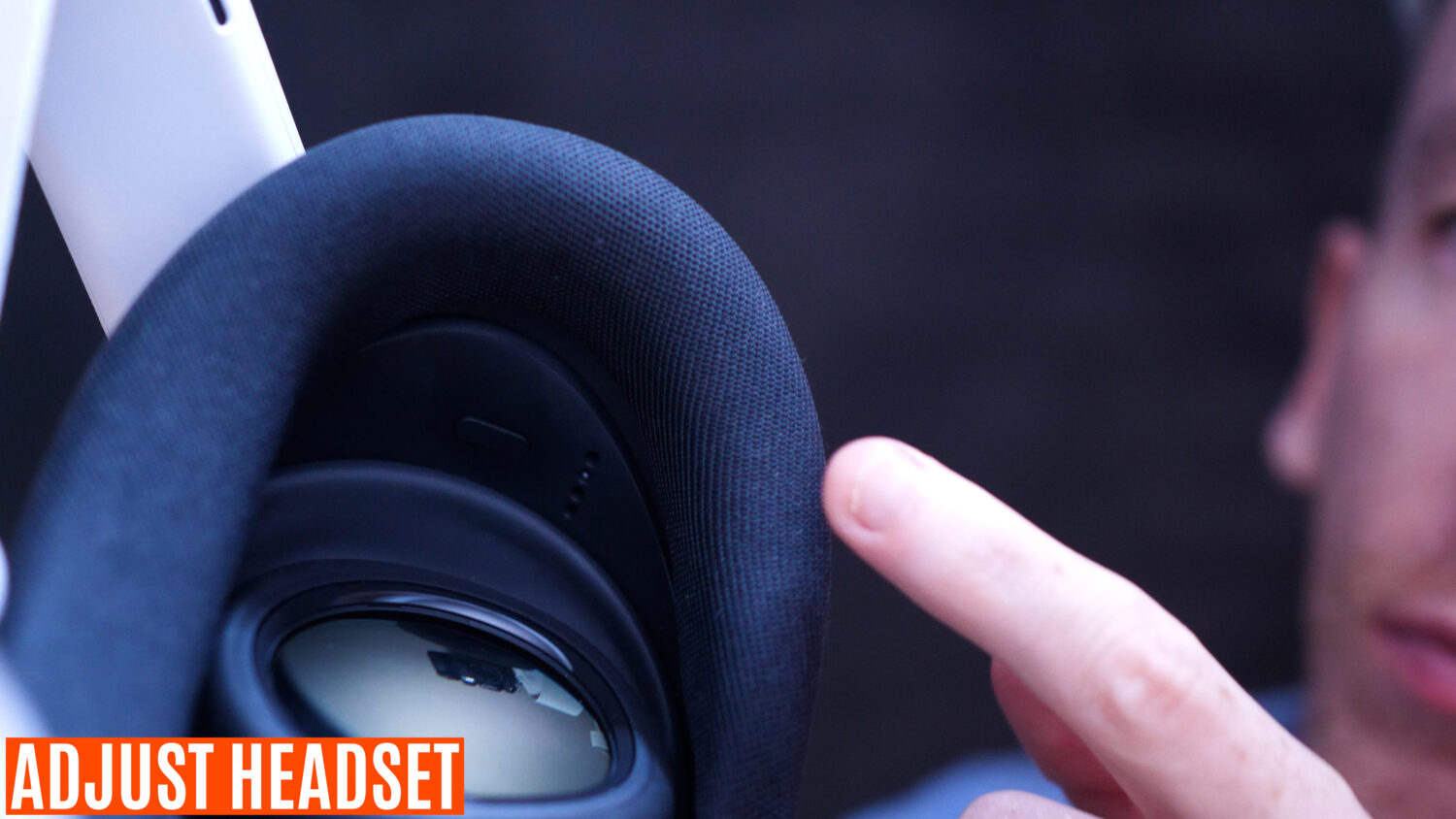
This is an easy one to miss but there are two buttons in the inside of the headset next to the speakers. Pressing these in and sliding the black plastic part of the headset allows to adjust how far it sticks out on both sides. This is to accommodate yet more face types and allow for personal comfort.
Set Your IPD
The next step for maximum comfort is to set the IPD. This refers to the distance between the two lenses, which move further apart of closer together using the wheel at the bottom on the Quest 3.
While you are wearing the headset adjust this wheel and you’ll feel the lenses move closer or further apart. You’ll notice the screen is a lot sharper when the lenses are set to match your eyes.
Close One Eye to Check If You Have It On Right
If it still doesn’t seem like the screen is fully sharp you may find that the screen isn’t exactly aligning with one of your eyes. Try closing each eye one of at a time and see if just one side is blurred. If so you may need to slightly tilt the headset until the view from both eyes is sharp.
Keep The Lenses Clean
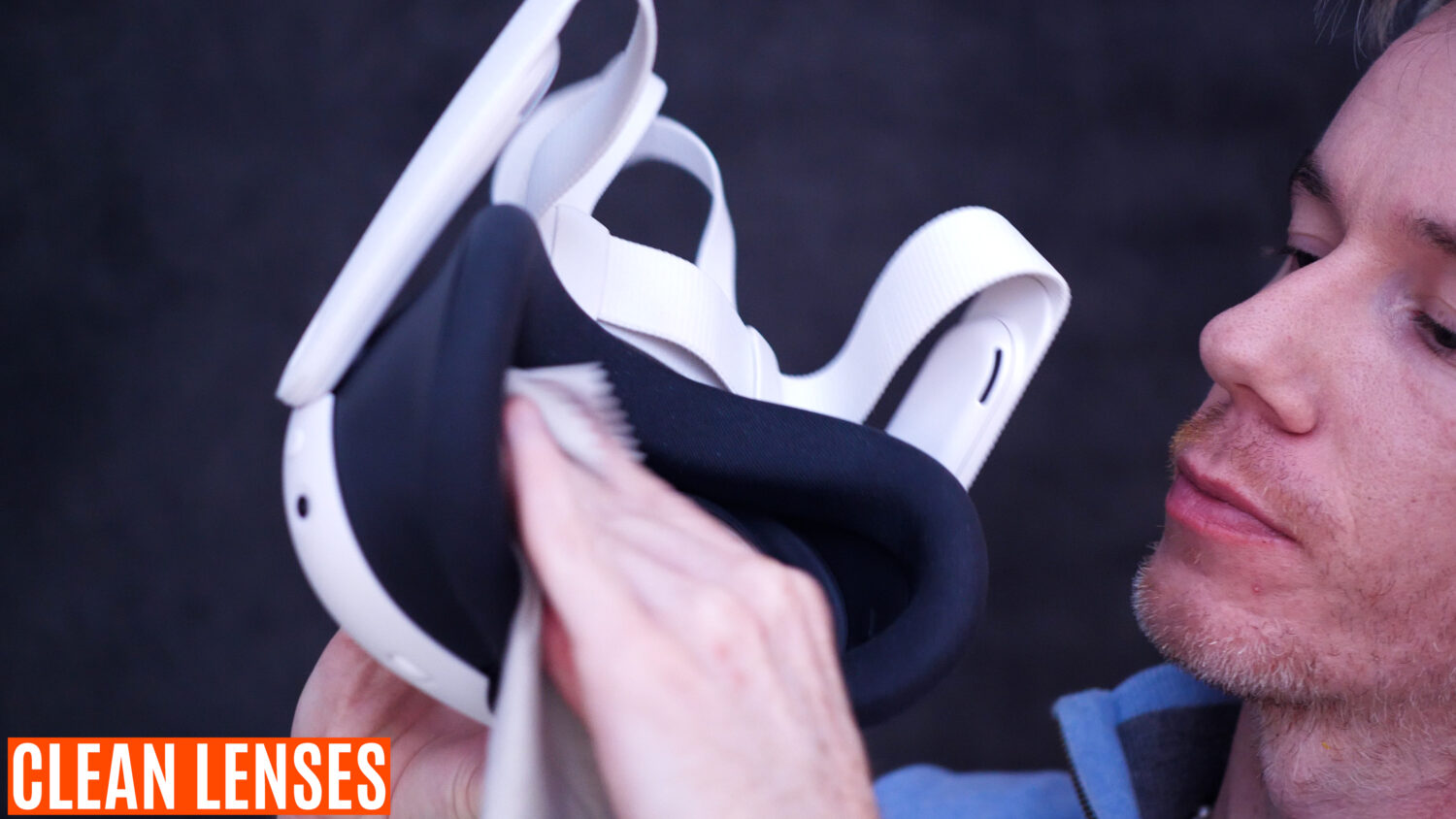
One of the best things you can do to make sure your VR experience is clear and crips is to make sure the lenses are free of smudges. Even a single fingerprint can ruin your VR experience. Ideally you should use a micro fibre cloth every time you have your fingers anywhere near the lenses.

Set Up Boundary Correctly
Your boundary is how you set up the play area for your VR experiences. You paint the boundary on the ground and if you go near it it will warn you before you crash into anything.
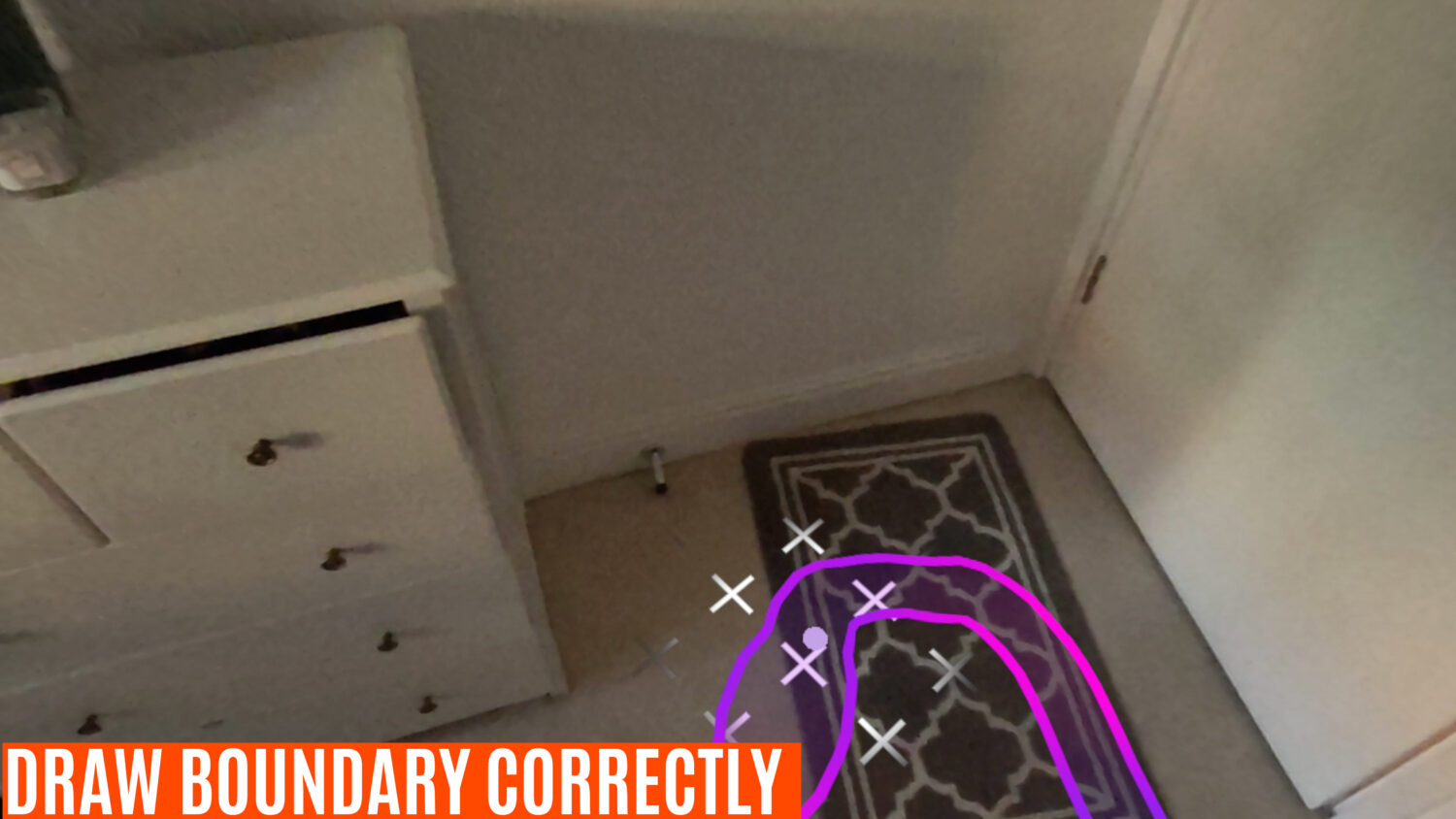
The best way to set up your boundary is to keep if at least half a metre before any wall or furniture. If you paint right up to the edge of your wall then you’ll end up smacking into it before it can warn you.
How to Reset Your View
If you find yourself a bit disorientated in the VR space then really simple to reset everything so you are facing “forward”, just press and hold the Meta logo button and everything will reset.
Quick Activate Passthrough
Mixed Reality is a big part of the Quest 3 experience thanks to the colour passthrough which allows you to see fairly clearly the room around you while you are playing.

You can activate the passthrough by selecting it on the menu, however you can more quickly switch to this mode by physically tapping either of your controllers on the top of the headset. Tap again if you want to enter the full virtual reality mode.
Check Controller Battery
The Quest 3 controllers have no physical indicators but when you wear your headset you’ll see the battery power superimposed onto the virtual controllers.
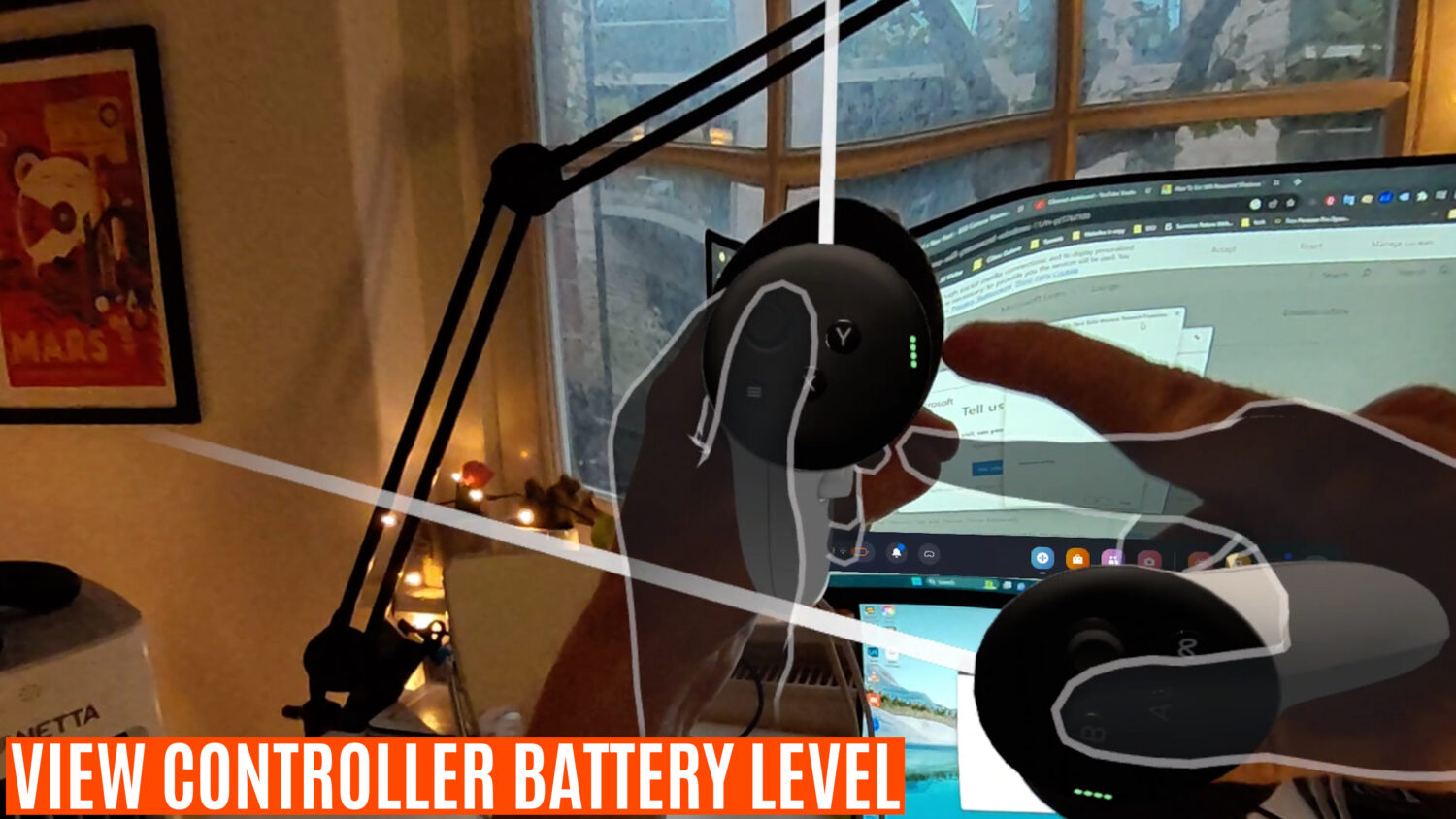
The four green dots indicate the battery power is full, but as you use the controllers overtime this will change and let you know when they need to be replaced.
Set Up Screen Recording
If you want to share your Quest 3 experiences like I am here then I suggest you go into the Quest 3 settings and change the recording settings. By default it’s set to record in a square format, however if you want to share on YouTube then the 1980 x 1080 resolution option is the better option.
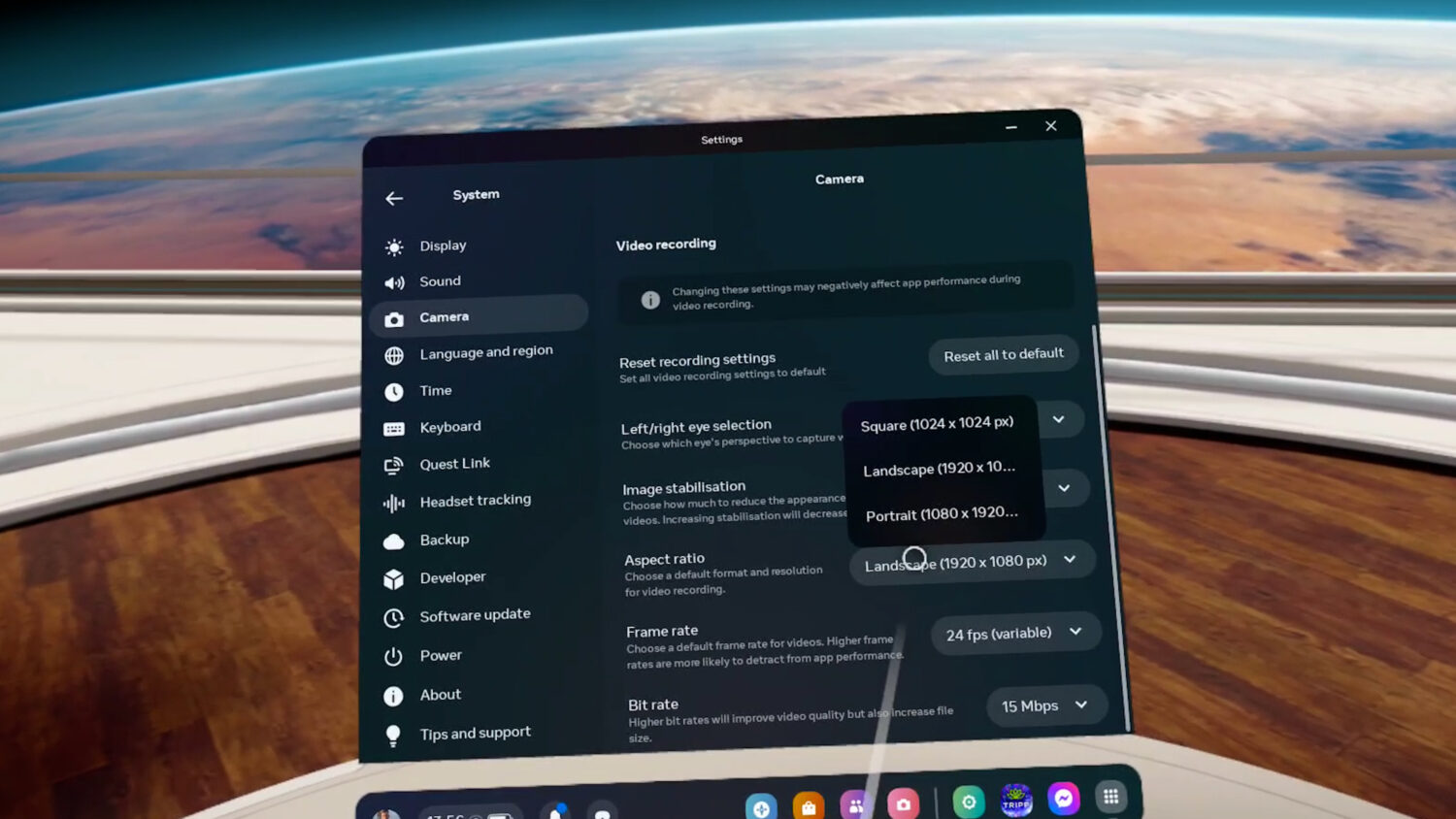
If you want to record for Instagram or TikTok then select the opposite resolution. I set the bit rate to it’s highest, which results in the best quality video, but this will lead to larger file sizes.
Recording Controller Shortcut
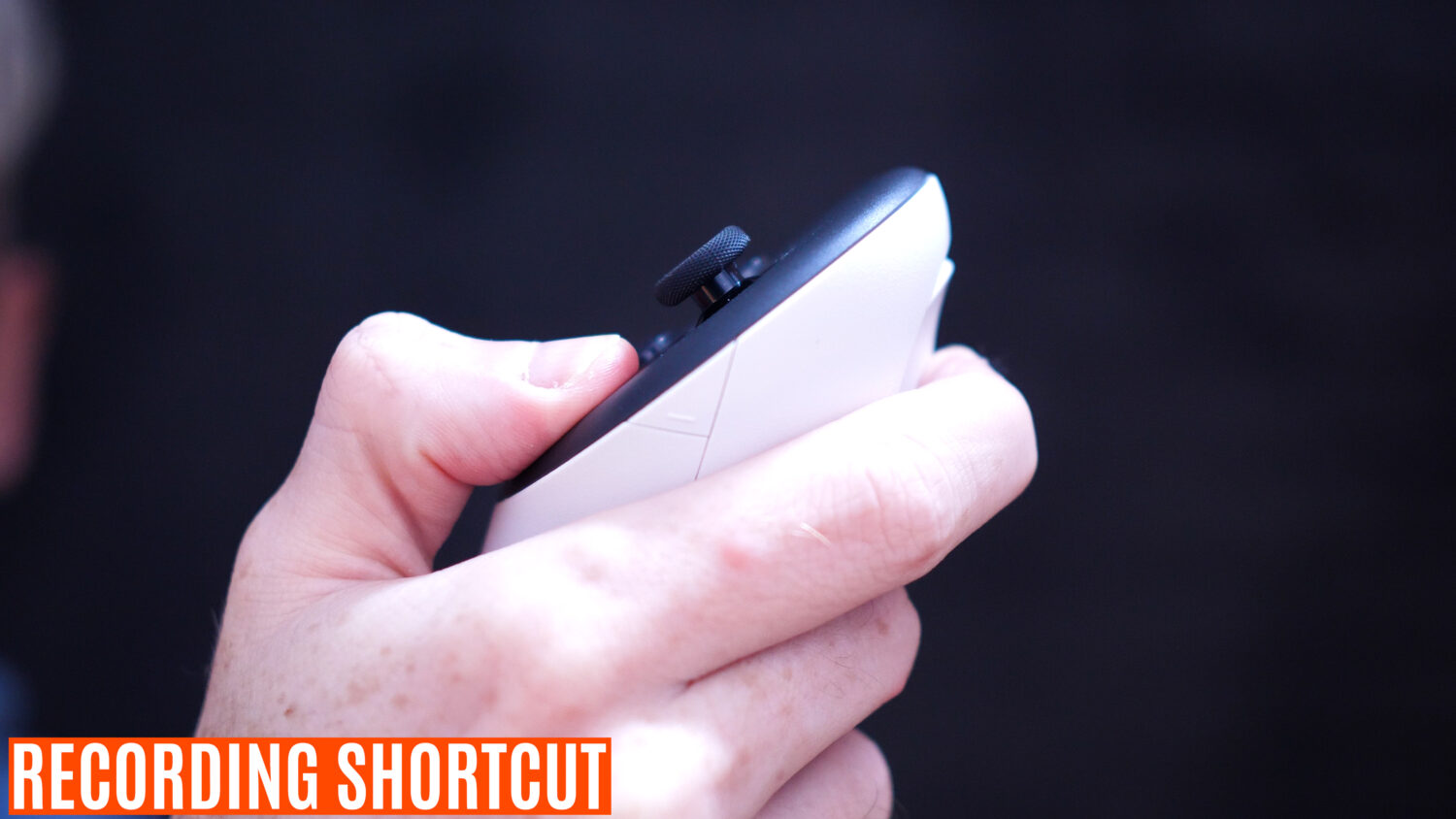
You can start recording by tapping the quest menu button and selecting the record button in the menu, however a quicker way to record is to press the Meta button on the controller while simultaneously holding down the trigger on the same controller. If you want to take a screen shot then do the same thing but press and release the trigger quickly.
Cast to Your Phone
You can share exactly what’s happening on your VR headset to a phone that has the Meta Quest app installed. Make sure both the phone and Quest 3 are connected to the same wi-fi and you’ll see that you can connect them. On the phone you can select the cast button and the phone will display everything that the headset user see’s.
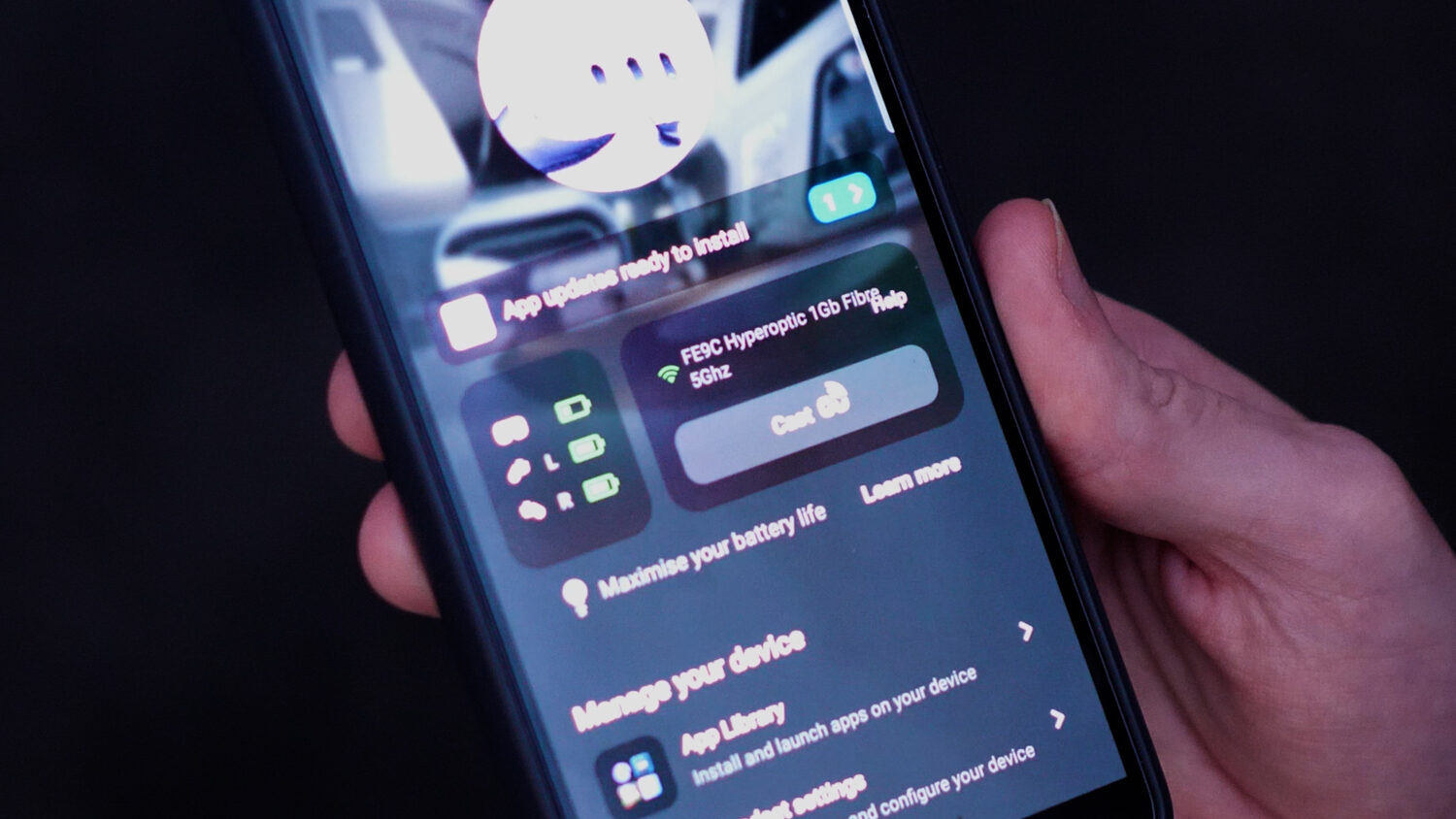
The phone user can also reset the view and even start the begging first steps tutorial app, which guides new users on how to use the headset. Casting to a phone is a great way to guide people who are new to VR. You can also cast to a smart TV which is a great way to share your experience with more people.
Download Demos
I recommend searching for the word “Demo” in the explore page which will reveal all of the games that have non-time limited demos. There are some very popular game and experiences with demos like beat sabre and superhot. These are obviously quite limited compared to teh full games but they give you a pretty good taste of some of the best VR experiences.
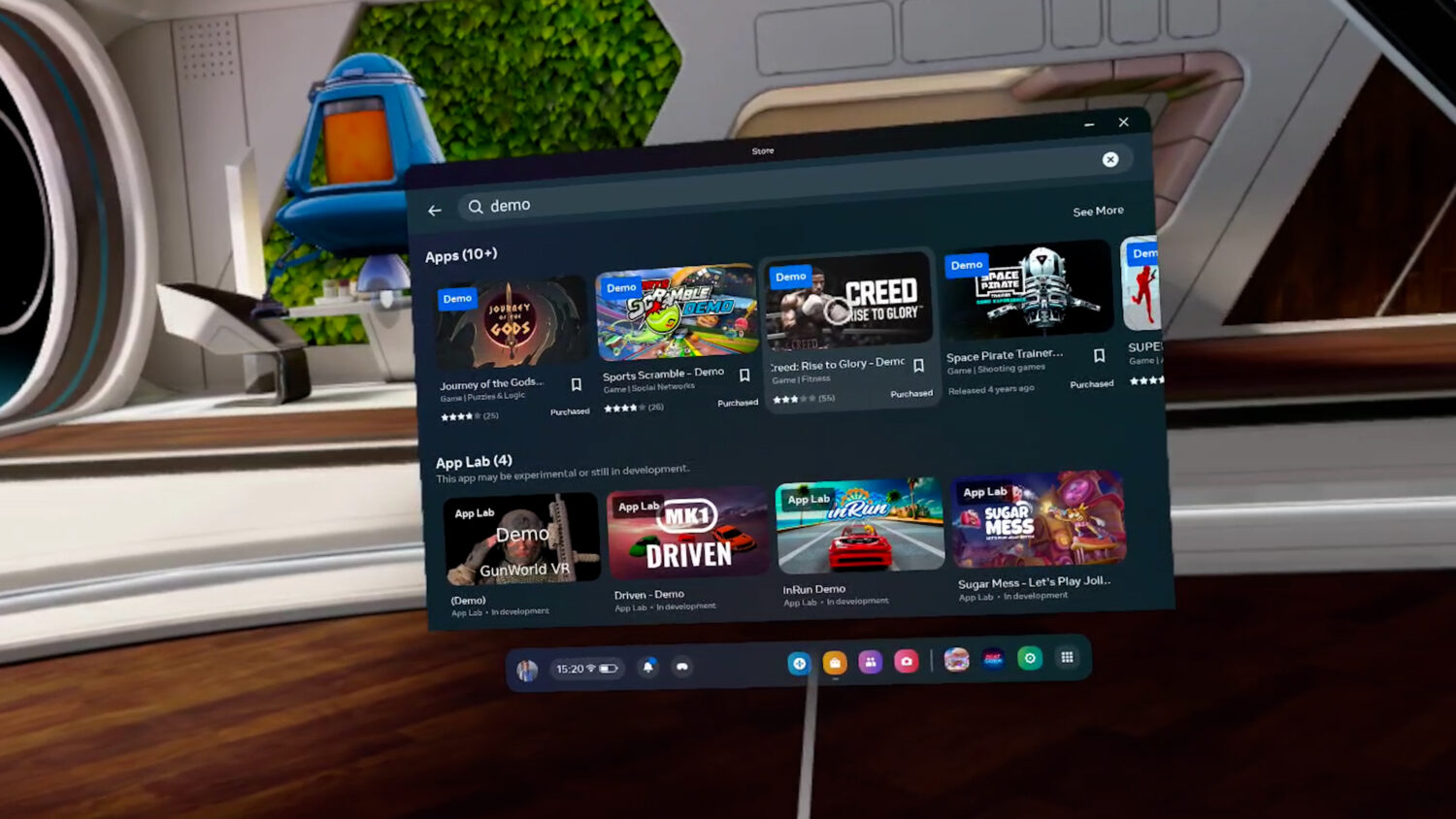
There are other games with time limited free trials, but they are limited to 15-20 minutes which I don’t think is long enough to decide whether to buy them game, but it’s better than nothing.
Beginner Apps to Use
Some Apps and games I recommend to new users of the Quest 3 include:
First Encounters: Created by Meta as a way to learn the controls and how to interact with VR worlds
First Hand: Created by Meta to teach you how to use the hand tracking feature.
First Encounters: Created by Meta to demonstrate the mixed reality feature of the Quest 3
Population One: Multiplayer, open world survivor game. A VR version of Fortnite
Blaston: A two player shooting game which also utilises the passthrough mode with mixed reality
Big Screen: A media app that allows you to watch movies, TV channels either alone or with others.
All of these apps are free.
Prioritise
If you find yourself downloading multiple apps and games at the same time but you are particularly keen to start one first, then you can prioritise it by selecting the option on the app icon.
Web Browser VR Apps
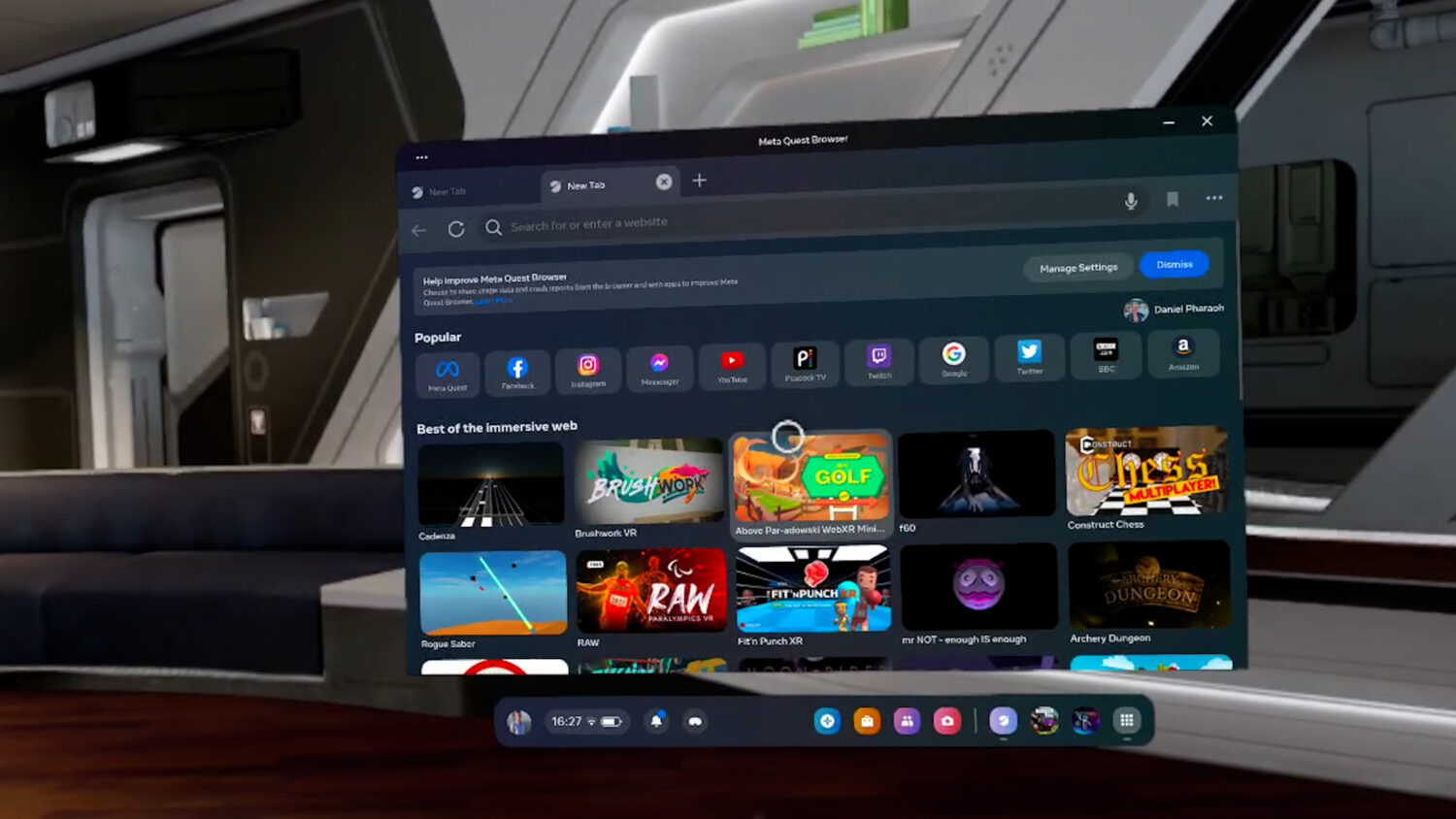
If you go to the Quest browser and open a blank tab you’ll find a series of webs based VR games and experiences available to explore. These aren’t often advertised and many people miss out on these. These are streamed to your headset so you don’t need to download anything
YouTube on Web Not The App
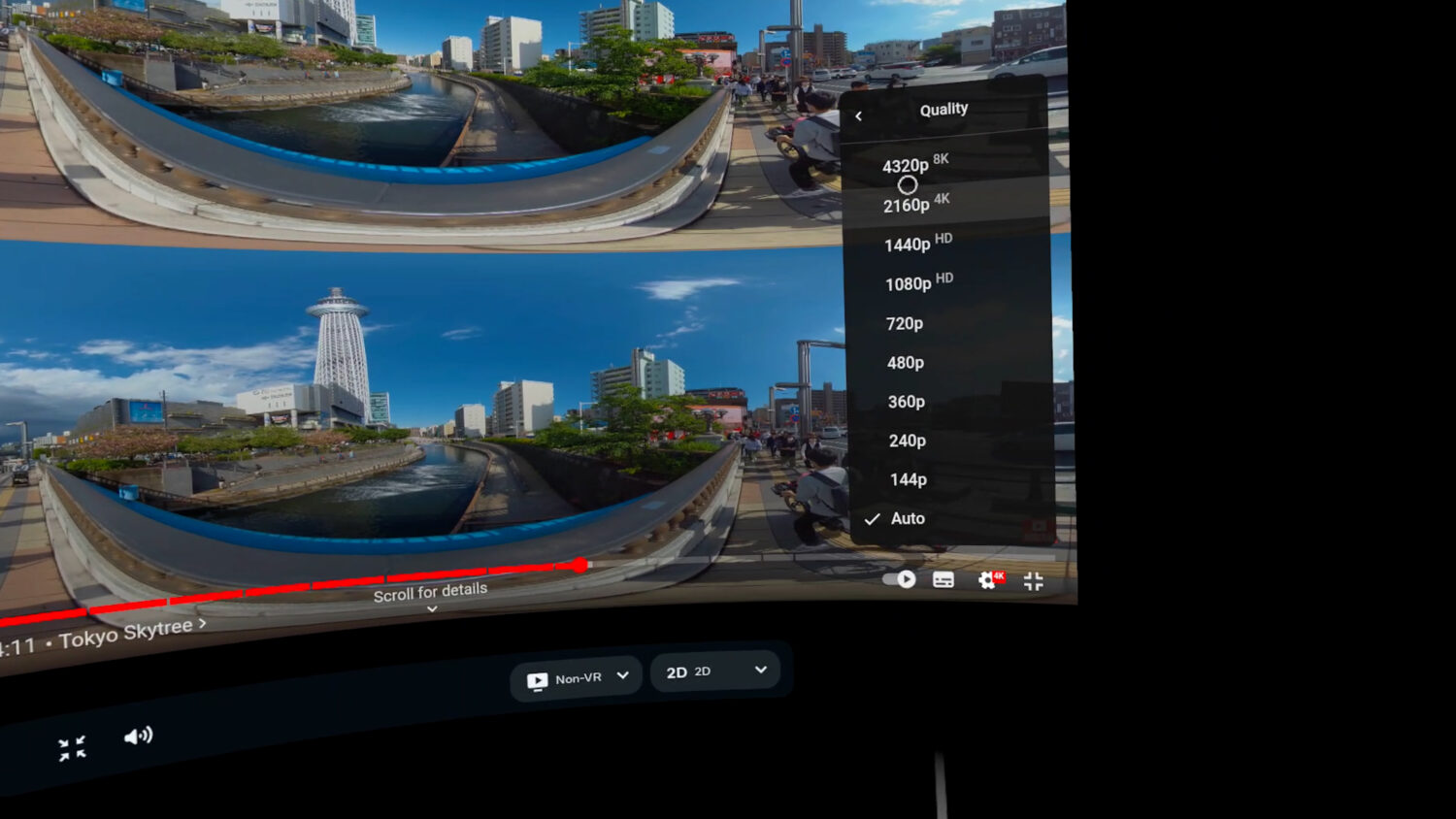
If you want to watch 360 immersive videos then you shouldn’t use the YouTube VR App because it limits the resolution of 3D 180 and 360 videos. Using the Quest web browser for YouTube allows you to stream these types of videos at a higher resolution
Scan Room For Mixed Reality
Several apps and games make use of the full colour passthrough by my mixing virtual reality with your real surroundings. For this to work best the headset needs to scan your surroundings to work out where to walls and furniture are. Go to settings, Physical Space, Space Setup and the select the button to start scanning your room. You just need to look around and it should work out where all your furniture and walls are.
See Also: Meta Quest 3 vs Pico 4
You can also manually adjust the location of your walls so it matches your room more accurately. Once this is done the Mixed Reality experiences will feel much more immersive and interactive.
Move Screens/Multiple Screens
If you want to adjust the size and location of the home screen then use your controller and point to the edge of the screen, you’ll see a white boarder surrounding it. Press and hold the trigger button and you will be able to move and resize the screen however you want. Resizing can be done by physically moving your hand back ad forward.
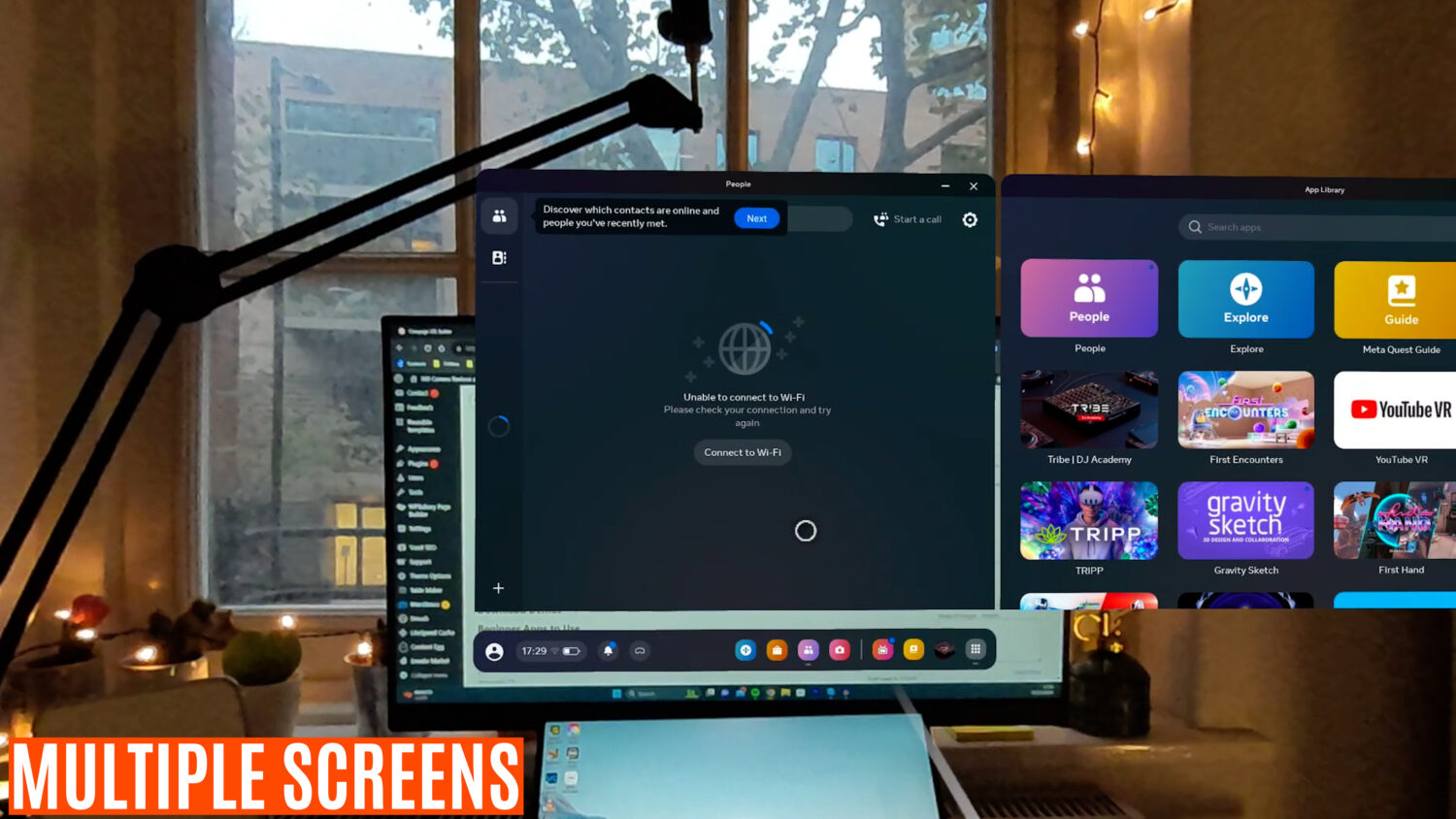
You can have multiple screens by dragging the first screen to the side and then selecting another menu. You have up to three screens activated at once.
Phone Notifications
Even though the Quest 3 colour pass through is good enough that you can see most details on your phone, if you want to make sure you don’t miss out on any notifications while you are using your headset go to the Quest app, headset settings, then notifications and you’ll be able to set up live notifications which will now pop up on screen when playing and VR game or app. You can also use Facebook Messenger and Whatsapp which have their own apps built into the Quest 3.
Activate Fitness Features
If you see yourself using one of the many fitness based apps, or you just want to see exactly how many calories you burn while playing one of the more fast paced VR games, then first you’ll need to activate the tracking features.
Go to your app library and sear for “Move” which should be pre-installed. Open the app and follow the instructions to add your information and even set goals. The Quest will now track how much you move and how many calories you burn over time.
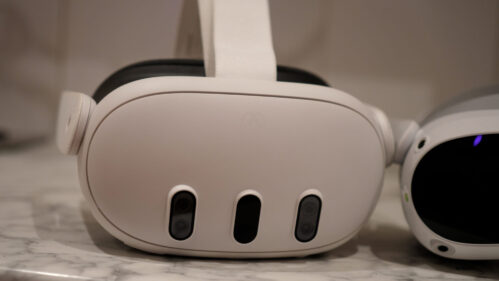
Meta Quest 3
 amzn.to
The next generation Meta headset with some huge improvements including; supercharged processer, high resolution screen, mixed reality & redesigned controllers


