Insta360 App Guide: 17 Features to Create Unique Content on the Fly


When you buy an Insta360 camera part of the price of the product includes the Insta360 App, which is a comprehensive editing program which is free to download from the app store.
The Insta30 App is in my opinion one of the best editing tools in the industry and allows you to make full use of the 360 capabilities. You can create unique shots which is not possible with other types of cameras and the automatic editing functions are unique to Insta360.
Here are my top 17 features of the Insta360 App:
Snap Edit with your phones Gyroscope
Using your phones gyroscope you can edit your Insta360 videos by physically moving your phone while playing back the video you shot earlier. This is a super simple and quick way to reframe your 360 videos and the movements of your phone make the resulting video look more natural.
Freeze Frame
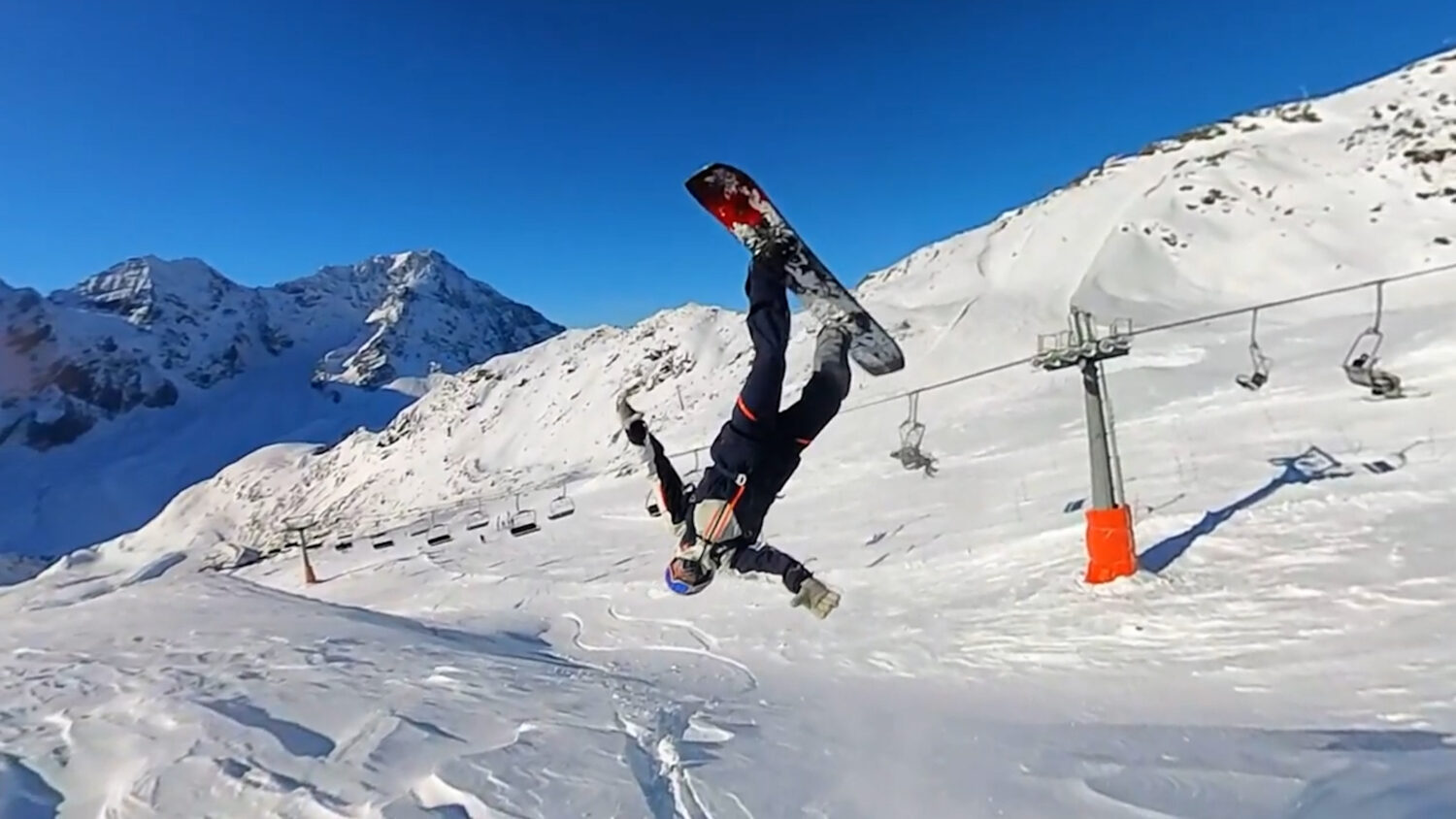
Make your action shots look even more epic with this built in feature that freezes your video at the best moment. Combining slow motion and reframing creates this awesome effect that’s perfect for any epic stunts.
Colour Editor
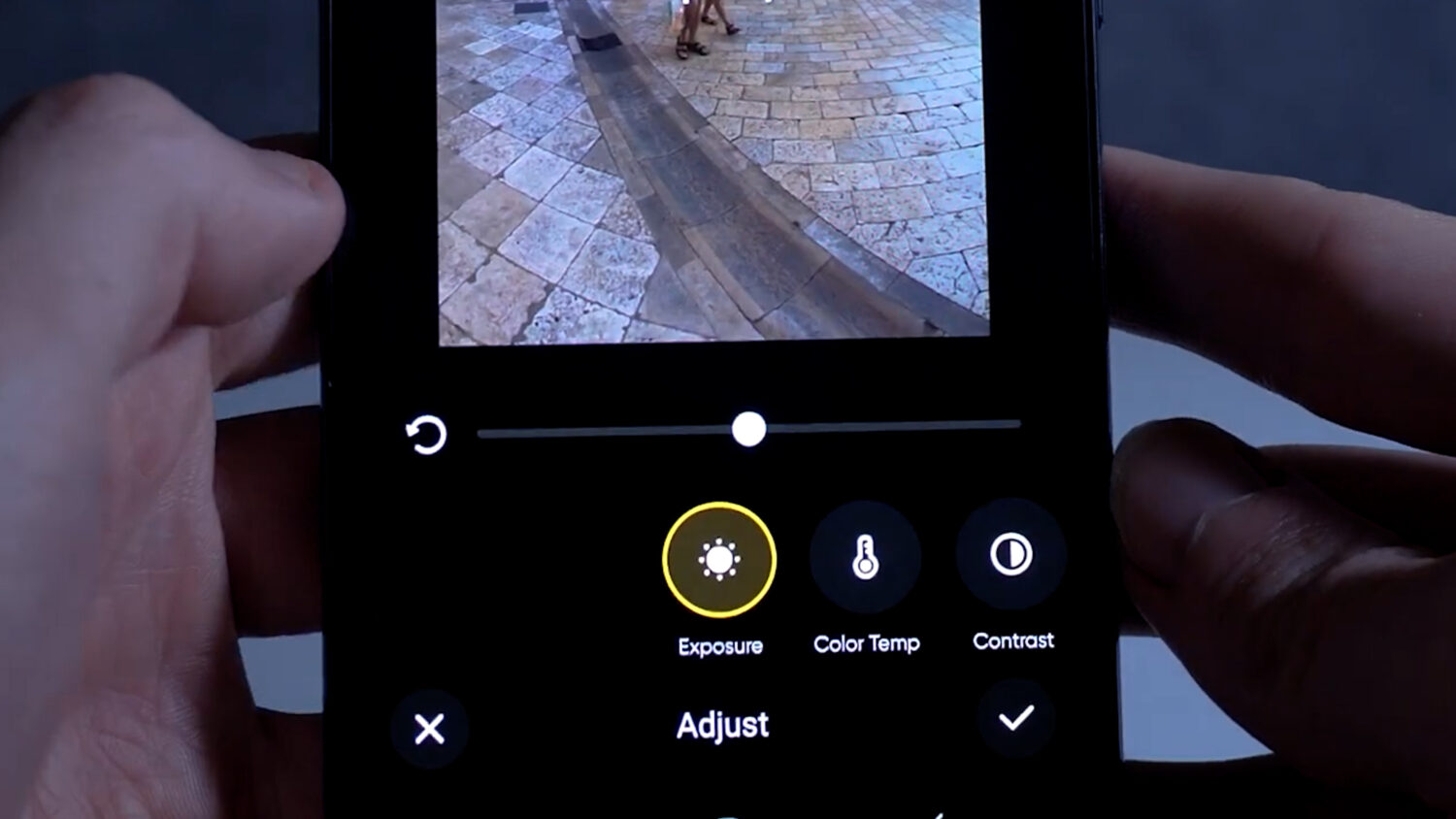
Instantly improve the look of your videos with the built in colour editor. By slightly adjusting the options you can add more colour, sharpness, reduce overexposure and expose more details. Remember it’s better to be subtle with adjusting these options. There are also lots of predetermined filters available for quicker colour adjustment
Reframe for unlimited shooting options
Reframing is the most useful feature of the Insta360 App. It’s how you turn your 360 video from this into this. This is where you shoot first point later feature of 360 cameras comes in. There’s nearly unlimited reframing options for any 360 video you shoot.
Shot Lab Effects
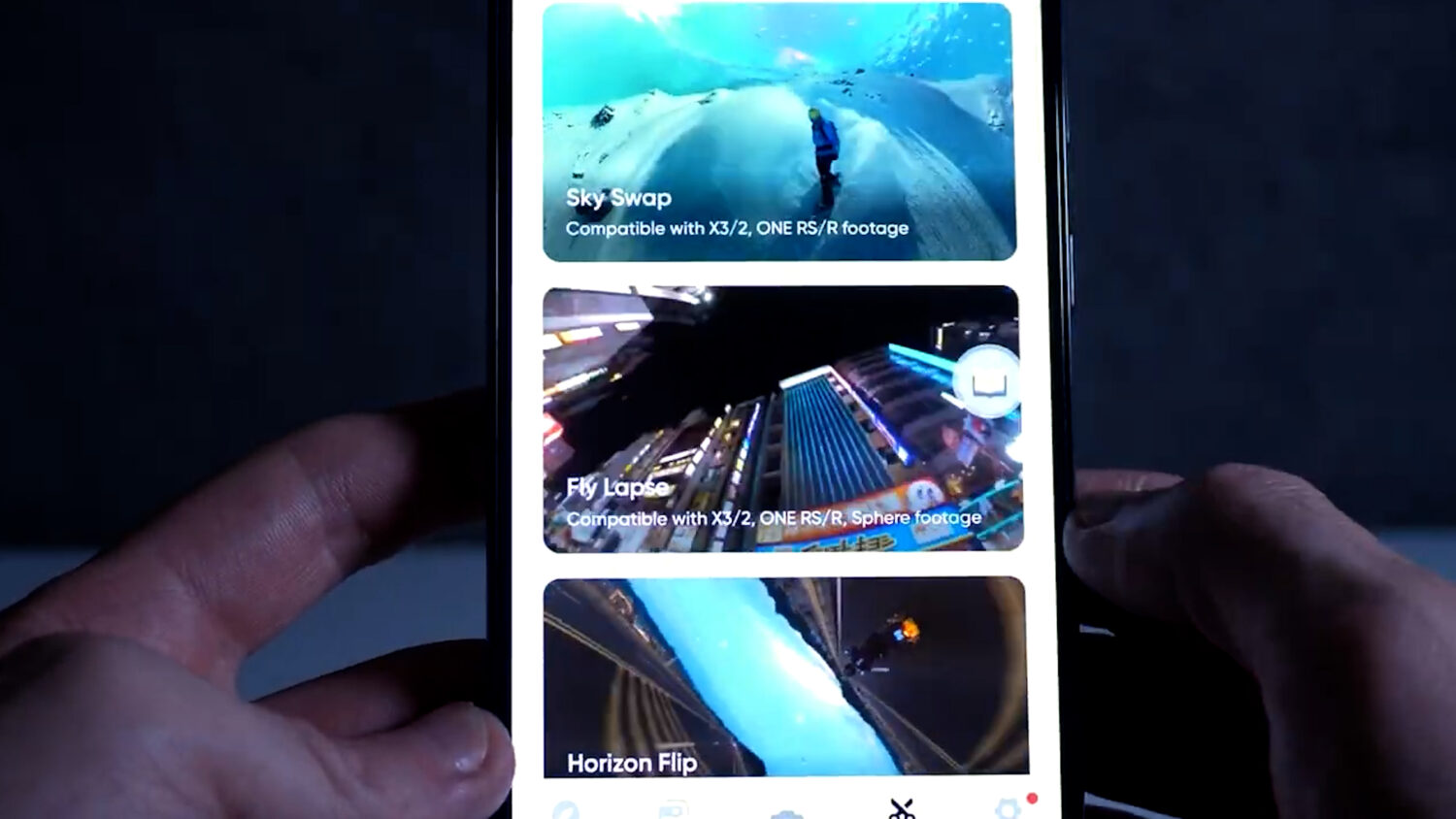
Don’t want to worry about all that editing? Insta360 App includes AI editors that allow you to upload your videos and have the app create special effects automatically. You just need to follow the shooting tutorial for each effect. There are a dozen or so effects with more being added a few times a year.
Deep Track
If you want to follow a single moving subject the deep track features will allow you to do this flawlessly. You don’t even need to move your camera to perfectly track a person or object, even if it’s moving itself. The tracking feature does all the work for you.
Change aspect ratio for YouTube/Social media
You can instantly change the aspect ratio of your videos so that they are compatible with Insta360 Stories, Reels, TikTok and YouTube. You can export for all of these without any extra editing.
Jump Cut
As well as trimming your videos from the start and end you can also cut and parts from the middle that you don’t want. You can jump one part of your clip to another instantly without having to create two separate videos.
Combine multiple clips
If you shot multiple clips and you want to combine them together in a single video you can do that in the “create a story” mode. Combine dozens of reframed clips together and export them as a single larger video.
Add Dynamic Transition
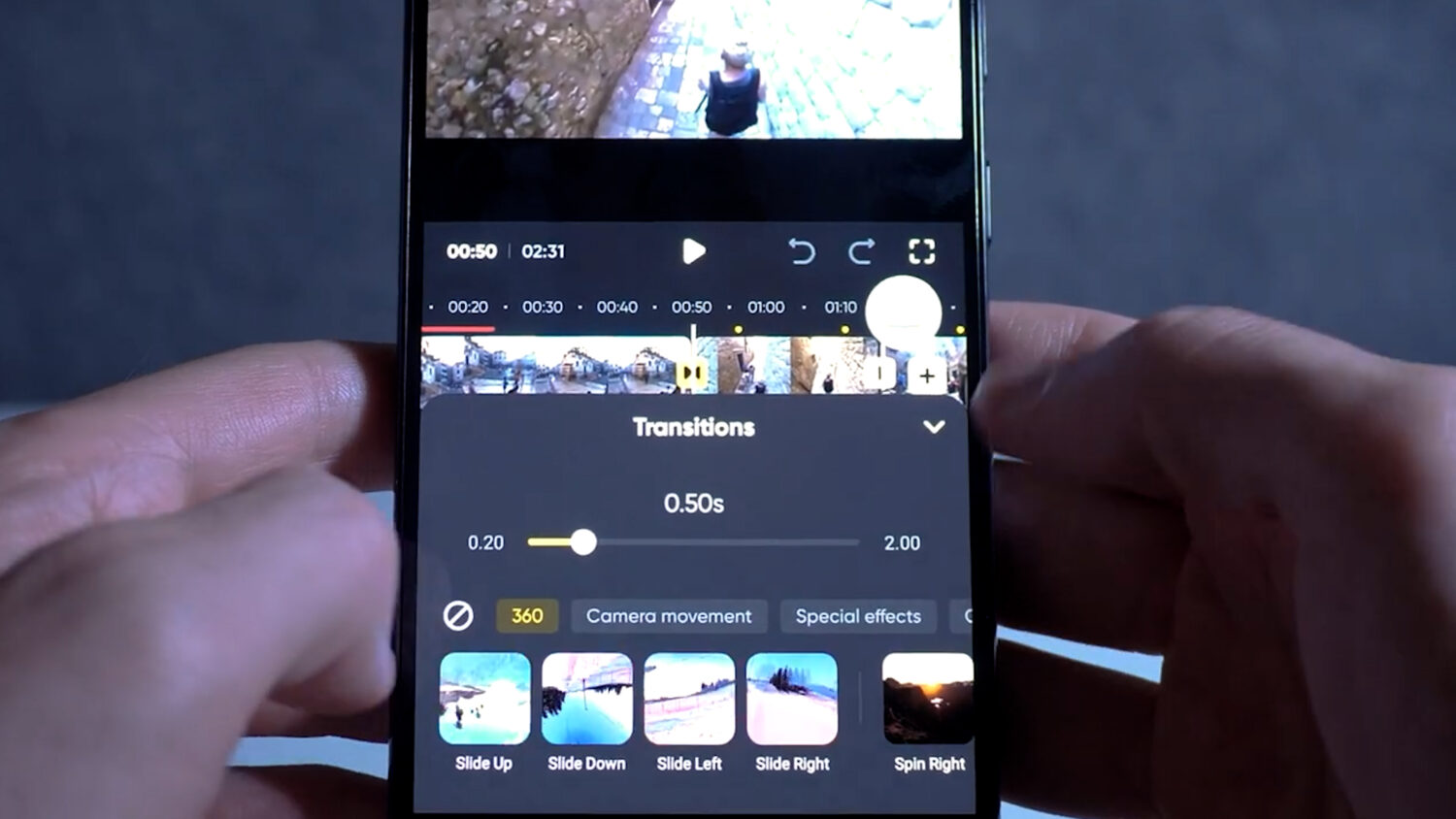
After adding your clips together you can add dynamic transitions so your video looks more professional. There are many to choose from which can fit the movements of your videos.
Multiview
Combine two views into one video, either split screen or one image over the other. Perfect for a dashcam view or reaction views. Choose how long you want the second view to appear on your timeline and even adjust the view individually
Speed up your video to hyperlapse
Hyperlapse videos are one of the best reasons to buy an Insta360 cameras. They are super easy to create on the app by adding the speed on your videos timeline. You can choose from several speed options, increase incrementally and even add a blur effect.
Create vlogs automatically with flashcut
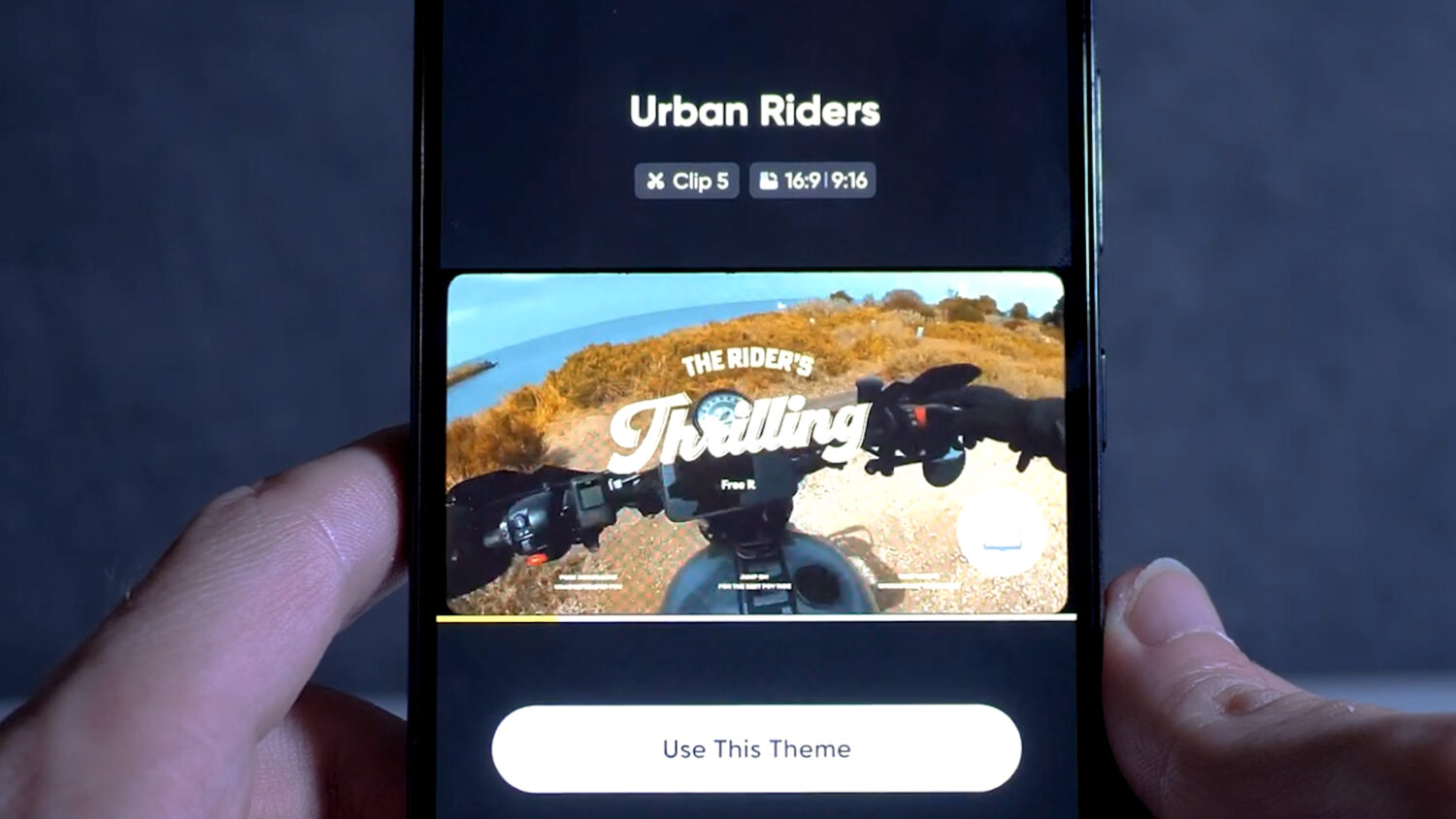
The Flashcut feature makes creating vlog videos quick and easy. Choose from dozens of themes which will automatically combine clips, add music, transitions and texts.
Add stickers and text to your video
If you’d rather add your own text then you can do that in the create a story mode. Choose you font, text size and transition onto your video.
Save Edit’s for Export on Desktop
One of the downsides of editing on the app is that your phone can’t export at the highest quality. Now you can edit your clips on the app and transfer these to your desktop where the edits will be saved and ready to export at the best possible quality.
Combine slow motion and hyperlapse
As well as speeding up your video into a hyperlapse you can also slow it down to crate slow motion shots. A top tip is to combine these two effects next to each other to create a really dynamic video. Make sure to shoot at 50fps for better slow motion shots.
Auto Reframe
Another time saving feature is the auto-reframe option. At the press of a button the app will attempt to find the bests parts of your video and add the appropriate camera movement’s so you don’t have to do it yourself. After it’s done processing you can choose the shots you want to keep and the ones you don’t.
See Also: Insa360 X3 Review