 The 360 Guy
Welcome to your complete Insta360 App 2025 guide, your all-in-one resource for navigating the newly updated interface, editing features, and hidden tools that make this app a powerhouse for 360 content creation. Whether you’re new to the app or returning to explore the major overhaul in this version, this guide will walk you through everything you need to know.
With its most significant update to date, the Insta360 app 2025 introduces a fresh interface, faster editing tools, and a revamped workflow. Let’s break it all down.
Video Guide
Probably the easiest way to show you the new app is via this video guide, but if you prefer reading then I break it all down in the rest of this post.
Getting Started with the New Interface
As soon as you open the Insta360 app in 2025, you’ll notice a cleaner, more intuitive layout. After selecting your camera model, you’ll see a brief onboarding tutorial. These tutorials are helpful but basic, so don’t rely on them for in-depth guidance. That’s what this post is for.
At the bottom of the screen are five main tabs:
Explore: See content from the Insta360 community.
Album: View your downloaded footage.
Camera Control: Connect and manage your Insta360 device.
Edit: Access editing tools, templates, and AI features.
Profile: Manage your account and preferences.
Let’s start with the Explore tab, which functions more like a social feed. While it includes promotions, competitions, and optional accessories using virtual “gold” rewards, many creators skip this section.
Navigating the Album and Media Library
The Album tab is where all your downloaded footage is stored. Compared to older versions, this view is far more practical, media thumbnails are now square and full-screen, making it much easier to identify clips visually.
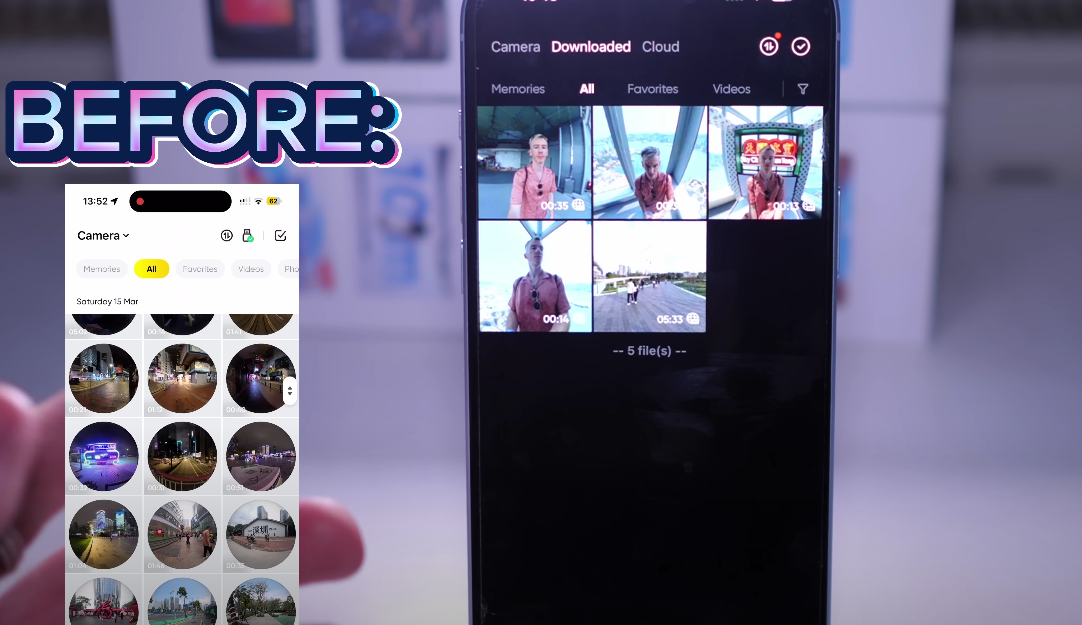
This change may seem minor, but for creators dealing with dozens of similar shots, it’s a big quality-of-life improvement. You can preview clips with better clarity, and the app auto-focuses on subjects to help you quickly choose your footage.
Editing Tools Overview
This is the heart of the Insta360 app 2025 guide—the editing section. The tools here are divided into a few categories:
1. Auto Edit
An AI-based editor that combines multiple clips into a dynamic video. It’s hit-or-miss, great for quick edits, but often bested by manual workflows.
2. Shot Lab
A collection of pre-built special effects and filters. Some are fun and creative, others a bit gimmicky. Still, it’s a fast way to create eye-catching transitions and visuals.
3. Create a Video
This is where you can merge multiple clips into one timeline. You’ll add transitions, apply effects, and adjust framing. It’s perfect for storytelling.
4. Quick Edit
Use your phone’s gyroscope to “film” the video in real-time by moving your device. It gives you manual control with a unique interactive twist.
Manual Editing & Keyframing
Now let’s dive into the real power of the Insta360 app 2025—manual editing using keyframes.
To access keyframe mode:
Select a video from your album.
Tap the diamond + icon.
A new interface will appear where you can place keyframes to change the direction of view throughout your video.
Keyframes let you control exactly where the camera points at any moment. The closer the keyframes are on the timeline, the faster the movement between angles; the farther apart, the smoother the transitions.
Additional features here include:
Dolby Vision Toggle: Enhance colour and dynamic range.
Linear Mode: Remove warping and fisheye distortion.
Face Tracking: Auto-focus on a subject’s face throughout the clip.
Deep Track: Lock the camera onto an object or person using AI.
Movements: Choose from pre-built camera movements for dynamic reframing without any manual input.
Multi-View: Show two angles at once (e.g., front and selfie views).
These tools offer precise creative control, essential for content creators, vloggers, and action shooters.
Chapter 5: Smart AI Editing Shortcuts
Not everyone wants to spend time manually keyframing every video. Fortunately, the Insta360 app includes AI-powered shortcuts:
Auto AI Movement: Instantly adds dynamic pans and zooms.
AI Face Tracking: Keeps the subject in the frame automatically.
Highlight Detection: Identifies the most interesting parts of your video and suggests them for editing.
These tools are useful for quick edits or when you’re batch-producing content and need a solid draft to refine later.
Timeline and Advanced Features
In the full editor, you’ll get access to a timeline view, making it easier to scrub through footage and apply tools to specific segments. Here are a few additional options worth noting:
Frame Cut: Remove unwanted middle sections of a clip (not just trimming the start or end).
Speed Ramp/Hyperlapse: Speed up segments to create dynamic timelapses or action shots.
Color Correction: Adjust exposure, saturation, contrast, and apply filters.
Motion ND: Adds motion blur—ideal for cycling, skiing, or running shots.
Stats Overlay: Integrate data from smartwatches (e.g., heart rate, speed).
These features push the app from being a companion tool to a nearly full-featured video editor—especially impressive for mobile devices.
Combining Videos and Building Stories
The final major feature in my insta360 app guide is the “Create a Video” function. This lets you combine multiple clips, trim and reframe them, and stitch them together with smooth transitions.
This is the best way to create narrative-driven content, YouTube vlogs, or reels using only the app.
You can:
Add transitions between clips.
Maintain or reset reframing from previous edits.
Quickly preview the combined project before exporting.
Final Thoughts: Is the Insta360 App 2025 Worth Learning?
Absolutely. With this update, the Insta360 App has been transformed and it will be necessary to learn where the new features are to get the most out of your camera. The new layout, combined with AI-powered features and deep manual controls, makes it perfect for creators who want quality content without transferring everything to a desktop. Some people will not enjoy the moving of features and buttons which are somewhat more hidden than before.
While it may take a little time to learn the ins and outs, mastering this app can save you hours in post-production and deliver results that look polished and professional.
Want to Master the Insta360 App? Join My Ultimate Video Course
If you’re ready to go beyond the basics and truly master the Insta360 app, editing techniques, and camera workflows—my Ultimate Insta360 Video Course is for you.
What’s inside:
Step-by-step tutorials covering every feature of the app
Advanced reframing and keyframe techniques
Real-world project examples with walkthroughs
Lessons on colour grading, effects, transitions, and more
Tips to shoot better 360 video and export like a pro
✅ Whether you’re just starting out or want to unlock the full potential of your camera, this course will make sure you never feel stuck or overwhelmed again.
Join the course here and take your 360 video skills to the next level!


Owner of threesixtycameras.com. Writer, photographer and videographer. You can see my YouTube channel for guides of how to shoot 360 video. I've written for The Times, Digital Photography School and Sunday Express.