Insta360 X5 Problems: The Most Common Issues and How to Fix Them


The Insta360 X5 is one of the best 360 cameras you can buy right now. In a lot of ways, it’s the easiest to use, has the best app, and offers the most complete feature set out of any consumer 360 camera.
But like any camera, it’s not perfect.
If you’ve just bought one, or you’re thinking about it, you’ve probably already come across people mentioning issues with overheating, stitching, low light or export problems. Some of these are genuine limitations of 360 cameras, while others are just settings or workflow issues that can be fixed pretty easily.
This guide breaks down the most common Insta360 X5 problems and, more importantly, how to actually fix them.
1. Overheating
This is probably the most talked about issue, and it’s not unique to the X5. Every 360 camera struggles with heat because you’re effectively running two cameras at once, stitching footage in real time and often shooting at 8K.
On the X5, overheating usually happens when:
- Shooting in 8K for long periods
- Filming in direct sunlight
- Leaving the camera stationary (tripod use is worse than handheld)
- Recording while also charging
How to fix it
There’s no magic setting, but you can reduce the chances quite a lot:
- Drop to 5.7K 60fps instead of 8K when you don’t need maximum resolution
- Keep the camera moving (airflow helps more than you’d think)
- Avoid charging while recording unless necessary
- Take short breaks between clips instead of one long recording
- Turn off Wi-Fi if you’re not using the app
In real-world use, I’ve found overheating is rarely an issue if you’re shooting normally (walking, biking, handheld). It becomes a problem when you try to push the camera to its limits.
2. SD Card Too Slow Message
This is one I’ve personally run into multiple times, and it’s probably the most frustrating issue when using the X5.
360 cameras shoot at very high bitrates, especially in 8K, which means they rely heavily on fast storage. If your microSD card isn’t quick enough, the camera simply can’t keep up. In most cases, this shows up as the recording stopping after a few seconds, or not starting at all.
At a minimum, you should be using a V30-rated microSD card. For example, something like the SanDisk Extreme Pro is a safe choice and what I’d recommend for consistent performance.

If you’re using a slower card and try to shoot in 8K 30fps, you’ll likely run into issues almost immediately.
Where this gets more frustrating is when you’re already using a fast card and the error still appears.
In that case, it’s usually down to the condition of the card rather than the spec. If a microSD card has been used heavily over time, or is close to full, its write speed can drop. That’s often enough to cause problems with high bitrate recording.
The best fix is to:
- Move all files off the card
- Format it in-camera
- Start fresh with empty storage
That will usually restore performance.
The problem, of course, is when this happens while you’re out shooting. In that situation, your only real option is to drop the resolution or frame rate so the camera isn’t pushing as much data.
If you’re planning a longer shoot, it’s worth bringing a spare, empty microSD card just in case. It’s one of those small things that can save a lot of frustration.
Also, make sure the camera is running the latest firmware, as Insta360 occasionally improves stability and compatibility with different cards.
| MicroSD Card | Speed Class | Why It’s Good for Insta360 X5 | Where to Buy |
|---|---|---|---|
| SanDisk Extreme Pro | V30 / U3 | Fast, reliable and the safest choice for 8K recording | Check price |
| Samsung PRO Plus | V30 / U3 | Great performance and often cheaper than SanDisk | Check price |
| Lexar Professional 1066x | V30 / U3 | Solid alternative with good sustained write speeds | Check price |
| SanDisk Extreme | V30 / U3 | Slightly cheaper option that still handles 8K well | Check price |
3. Stitching Issues (Visible Line / Seam)
Another common complaint is seeing a faint line or distortion where the two lenses meet.
This usually shows up when:
- A subject is too close to the camera
- Lighting is uneven between the two lenses
- The camera is slightly misaligned
How to fix it
- Keep important subjects at least 1 metre away from the camera
- Use the Insta360 Studio desktop software to manually adjust the stitching line
- Avoid placing key objects directly on the stitch line
- Make sure both lenses are clean and not scratched
- Update firmware – stitching often improves with updates
- If there’s direct sunlight then try and position the camera so the sun is facing in between the two lenses (so not on just one lens directly)
The best of these solutions is to use the desktop Studio to fix any stitching errors, but if you have an object too close to the camera it may be impossible to fix completely.
This isn’t really a “fault”, it’s just how 360 cameras work. The X5 actually handles stitching better than most, but you still need to be aware of where that seam is.
3. Poor Low Light Performance
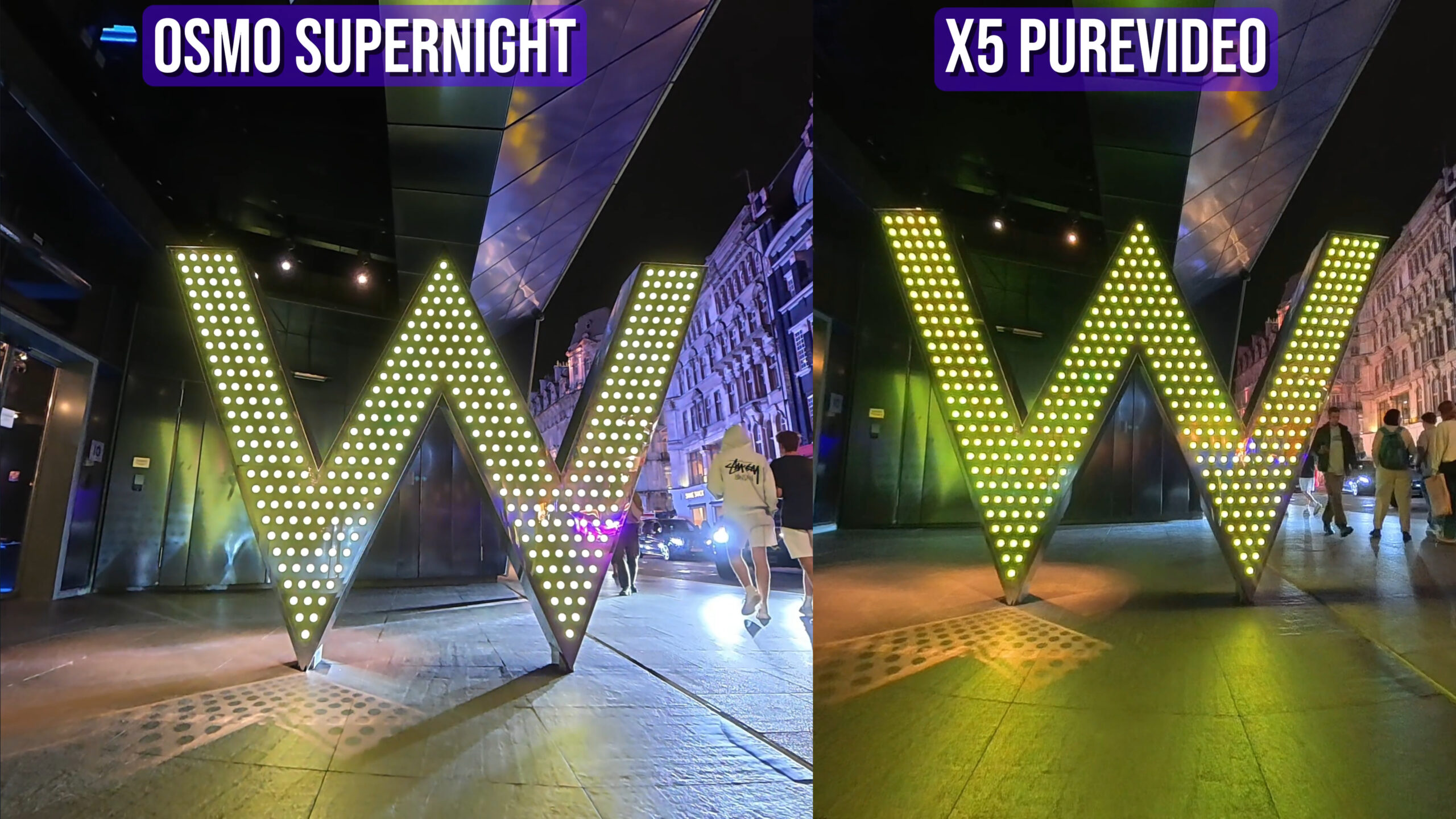
Low light is where most 360 cameras struggle, and the X5 is no exception.
You might notice:
- Grainy footage
- Soft detail
- Motion blur
This is mainly due to the small sensors and the need to combine two images.
How to fix it
- Use PureVideo mode for night shooting (this makes a big difference)
- Keep the camera as stable as possible
- Avoid fast movement in low light
- Shoot in areas with consistent lighting (street lighting works well)
If low light is your main use case, no 360 camera is perfect yet. The X5 is good, but you still need to work within its limits.
4. Battery Drains Too Quickly
This one comes up a lot, especially when shooting in higher resolutions. The reality is that shooting in 8K + stabilisation + internal camera stitching = heavy battery use
How to fix it
- Use lower resolutions when possible
- Turn off Wi-Fi and Bluetooth when not needed
- Carry a spare battery (honestly the best solution)
- Use power saving settings in the camera
I’d say the most efficient way to save battery that won’t impact the use of the camera much is to turn off AI Highlights, Pre-Recording, Gesture Control, Twist to Shoot and Voice Control. All of these are interesting features but they all drain the battery.
5. Files Are Too Large / Hard to Manage
8K 360 footage creates huge files. This isn’t really a bug, but it becomes a problem quickly if you’re not prepared.
You might run into:
- Storage filling up fast
- Slow transfers
- Editing lag
How to fix it
- Use a fast microSD card (UHS-I V30 minimum, ideally higher)
- Transfer files regularly instead of letting them build up
- Use proxy editing in Insta360 Studio
- Only export clips you actually need
This is more of a workflow issue than a camera problem. Once you adjust how you handle files, it becomes much easier.
6. Exporting Takes Too Long
Exporting 360 footage is always slower than normal video, and this catches a lot of people off guard.
Reasons include:
- High resolution (8K)
- Reframing processing
- Stabilisation and stitching
How to fix it
- Lower export resolution if you don’t need full quality
- Use a more powerful device for editing
- Avoid overusing effects in the app
- Export shorter clips instead of full videos
If you’re editing a lot, it’s worth using a desktop rather than relying purely on your phone.
7. App Feels Slow or Laggy
The Insta360 app is one of the best out there, but it can still feel slow depending on your phone.

This usually happens when:
- Working with 8K files
- Using older devices
- Editing longer clips
How to fix it
- Keep clips short when editing on mobile
- Clear cache in the app
- Close background apps
- Use Insta360 Studio on desktop for heavier edits
The app is great for quick edits, but for anything more complex, desktop is still the better option.
8. Lens Scratches (Big One)
This is probably the most important issue to be aware of. 360 lenses are exposed and curved, which makes them:
- Easy to scratch
- Hard to repair
How to fix it
- Use lens guards from day one
- Be careful placing the camera down, or use a hard shell case
- Store it in a case when not in use

This is where the X5 is better than older models because of replaceable lenses, but you still don’t want to rely on replacing them regularly.
What Most People Get Wrong
A lot of the “problems” people talk about aren’t actually faults but general limitations of current technology
360 cameras:
- Will overheat if pushed too hard (shooting for 30 minutes + in high heat)
- Will struggle in low light (action camera sensor size)
- Will produce large files (8K 360 videos are HUGE)
- Will require more effort to edit (with 360 camera editing is 80% of the effort but shooting is way easier)
Once you understand that, the X5 actually performs very well.
Final Thoughts
The Insta360 X5 isn’t perfect, but most of its issues are either manageable or just part of using a 360 camera.
The key things to understand are:
- Don’t push 8K all the time
- Be aware of stitching
- Protect the lenses
- Get your workflow right
If you do that, the X5 is still one of the most capable and easiest 360 cameras to use right now.